
Our take
- You publish short-form video and need multilingual captions without manually syncing subtitles
- You work with Indian regional languages — Gujarati, Hindi, Marathi, Punjabi are surfaced as recommended options
- You want one tool that handles transcription, translation, styling, and export without switching apps
- You need watermark-free output without paying — the free plan watermark is prominent and not suitable for publishing
Feature scores on this page: 8.4/10 (4 scored features)
Our take
Zeemo AI handles the entire multilingual captioning pipeline in one place — upload, transcription, translation, styling, and export — without requiring you to stitch together separate tools. The dual-language editor makes it easy to verify translations before exporting, and caption sync to speech timing was accurate in our test. The free plan is workable for evaluation but not for publishing: the watermark is prominent, video length is capped at one minute, and templates are locked behind paid tiers.
In-Depth Review
Our detailed analysis of Zeemo — features, performance, and real-world testing.
Feature-by-Feature Breakdown
We tested each feature individually. Click any card to see inputs, outputs, and our observations.
Video Upload Section8/10▾
Feature tested: Video Upload Section
Result: Passed (8/10)
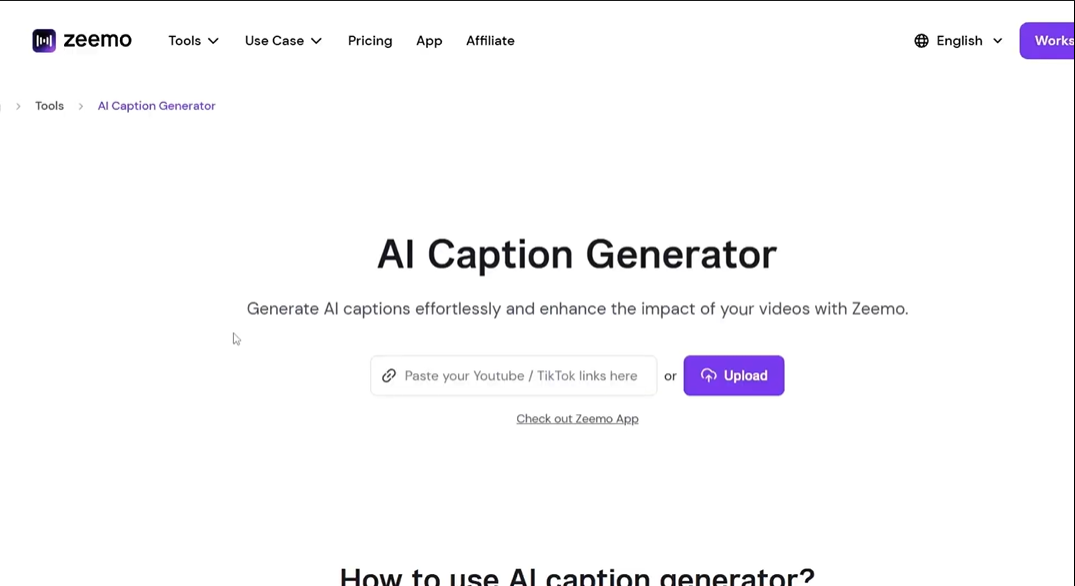
Expected behavior: Zeemo accepts video uploads from local files or via direct links from YouTube, TikTok, X (Twitter), Instagram, and Google Drive — no format conversion or pre-editing required.
Test case: Video file → Image
Input type: Video file
Input used: Input artifact (Video file): Raw .mp4 talking-head video, uploaded via the drag-and-drop interface. — Raw file of Pradip Sir-1.mp4
Observed output: Output artifact (Image): Output : — Screenshot 2026-04-14 175715.png
Input artifact: Input artifact (Video file): Raw .mp4 talking-head video, uploaded via the drag-and-drop interface. — Raw file of Pradip Sir-1.mp4
Output artifact: Output artifact (Image): Output : — Screenshot 2026-04-14 175715.png
What changed: Video file transformed into Image
Why it matters / Conclusion: Upload works cleanly for both local files and social media links. No pre-processing needed before uploading.
Zeemo accepts video uploads from local files or via direct links from YouTube, TikTok, X (Twitter), Instagram, and Google Drive — no format conversion or pre-editing required.
Language Detection & Translation9/10▾
Feature tested: Language Detection & Translation
Result: Passed (9/10)
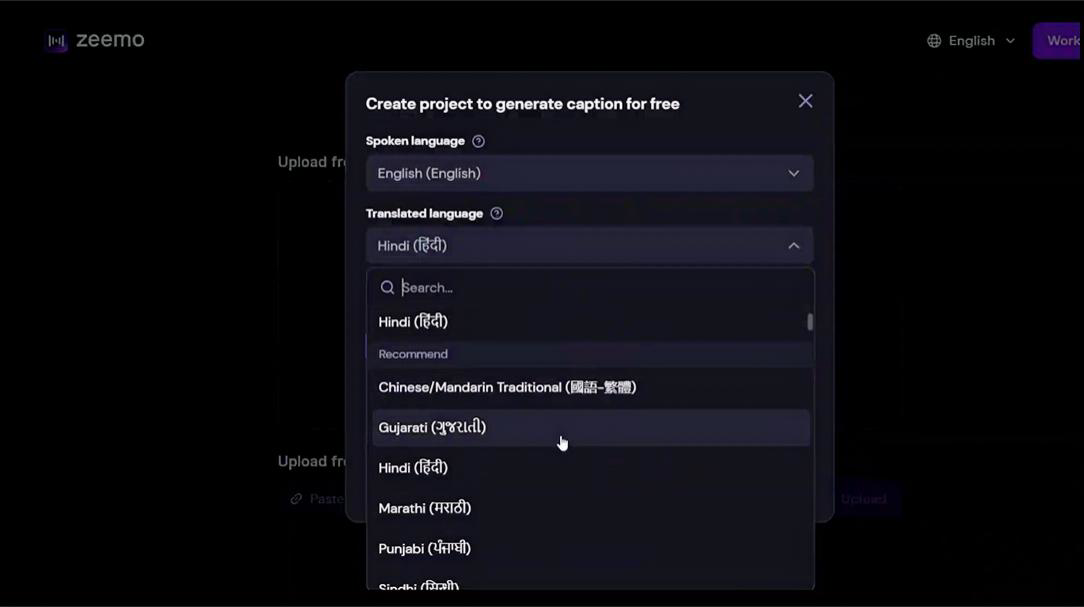
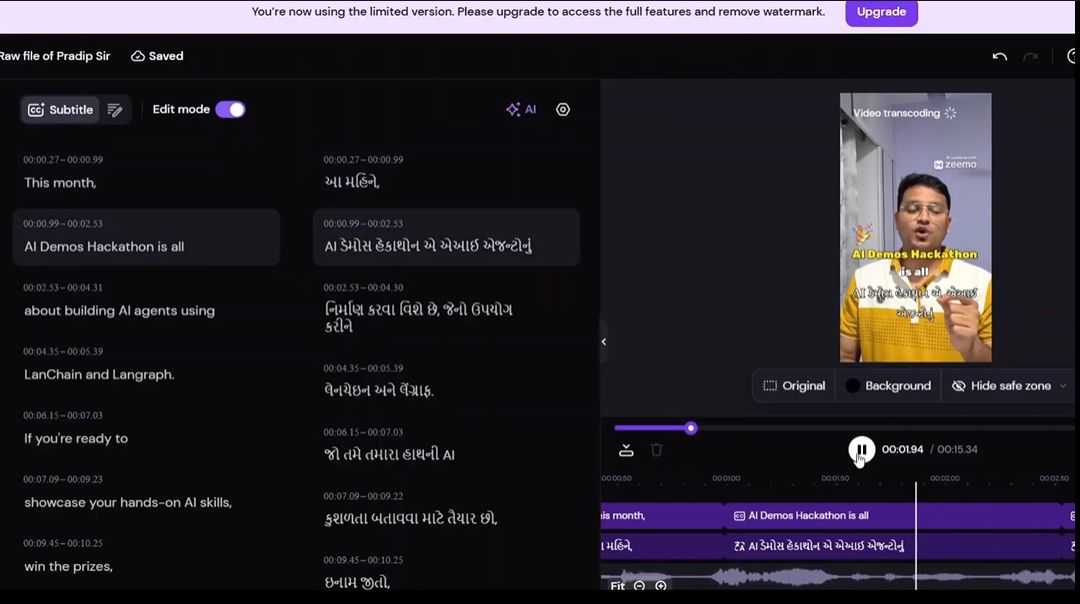
Expected behavior: After upload, Zeemo presents a project setup modal where you select the spoken language and the target translation language. The tool transcribes the original speech and generates translated captions in the selected output language.
Test case: Text prompt → Image
Input type: Text prompt
Input used: Input artifact (Text prompt): English-language video. Spoken language set to English (English). Translated language set to Gujarati (ગુજરાતી).
Observed output: Output artifact (Image): Output : — Screenshot 2026-04-14 175824.png
Input artifact: Input artifact (Text prompt): English-language video. Spoken language set to English (English). Translated language set to Gujarati (ગુજરાતી).
Output artifact: Output artifact (Image): Output : — Screenshot 2026-04-14 175824.png
What changed: Text prompt transformed into Image
Test case: Text prompt → Image
Input type: Text prompt
Input used: Input artifact (Text prompt): English-language video. Spoken language set to English (English). Translated language set to Gujarati (ગુજરાતી).
Observed output: Output artifact (Image): Output : — Screenshot 2026-04-14 180003.png
Input artifact: Input artifact (Text prompt): English-language video. Spoken language set to English (English). Translated language set to Gujarati (ગુજરાતી).
Output artifact: Output artifact (Image): Output : — Screenshot 2026-04-14 180003.png
What changed: Text prompt transformed into Image
Why it matters / Conclusion: Language detection and translation worked correctly for English-to-Gujarati. The dual-column editor makes spot-checking translations straightforward before committing to export.
After upload, Zeemo presents a project setup modal where you select the spoken language and the target translation language. The tool transcribes the original speech and generates translated captions in the selected output language.
AI Enhancement Options8/10▾
Feature tested: AI Enhancement Options
Result: Passed (8/10)
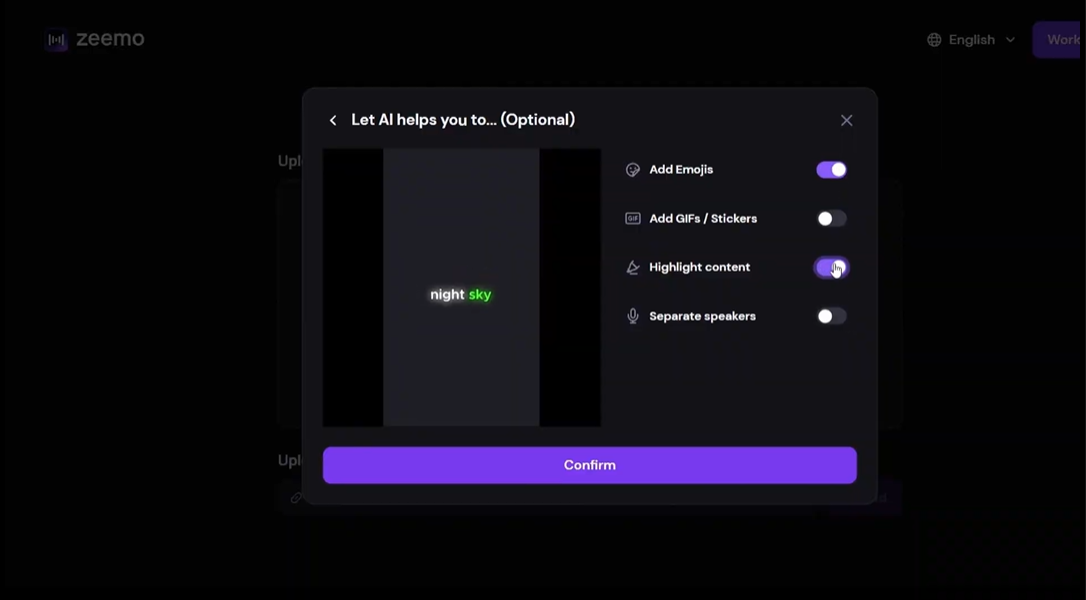
Expected behavior: Before processing begins, Zeemo offers four optional AI enhancements toggled on or off in a pre-generation modal: Add Emojis, Add GIFs / Stickers, Highlight content, and Separate speakers.
Test case: Text prompt → Image
Input type: Text prompt
Input used: Input artifact (Text prompt): Project setup with "Add Emojis" and "Highlight content" toggled on; "Add GIFs / Stickers" and "Separate speakers" left off.
Observed output: Output artifact (Image): Output : — Screenshot 2026-04-14 175922.png
Input artifact: Input artifact (Text prompt): Project setup with "Add Emojis" and "Highlight content" toggled on; "Add GIFs / Stickers" and "Separate speakers" left off.
Output artifact: Output artifact (Image): Output : — Screenshot 2026-04-14 175922.png
What changed: Text prompt transformed into Image
Why it matters / Conclusion: Enhancement options are genuinely optional and don't affect core captioning accuracy. Highlight content is the most useful toggle for short-form social video. GIFs and stickers add visual noise in most contexts and are better left off.
Before processing begins, Zeemo offers four optional AI enhancements toggled on or off in a pre-generation modal: Add Emojis, Add GIFs / Stickers, Highlight content, and Separate speakers.
Caption Styling & Dynamic Effects8.5/10▾
Feature tested: Caption Styling & Dynamic Effects
Result: Passed (8.5/10)
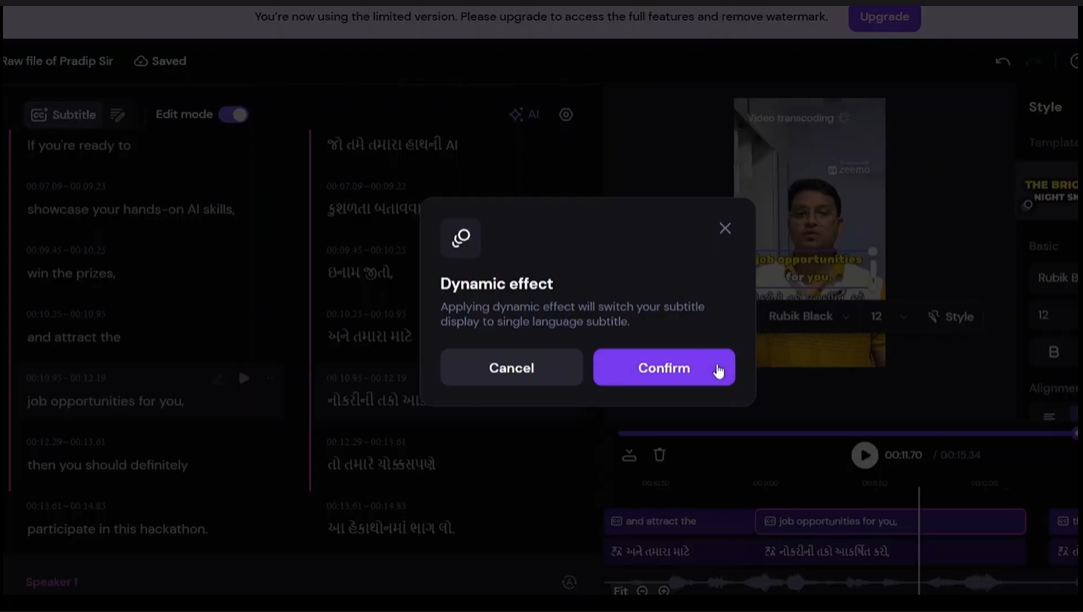
Expected behavior: Inside the editor, captions can be styled using font family, size, color, and pre-built templates from the right panel. A "Dynamic effect" mode switches the caption display from dual-language to single-language animated output — better suited for final video rendering than the editing view.
Test case: Text prompt → Image
Input type: Text prompt
Input used: Input artifact (Text prompt): Dual-language caption view in the editor. Dynamic effect selected and confirmed.
Observed output: Output artifact (Image): Output : — Screenshot 2026-04-14 180112.png
Input artifact: Input artifact (Text prompt): Dual-language caption view in the editor. Dynamic effect selected and confirmed.
Output artifact: Output artifact (Image): Output : — Screenshot 2026-04-14 180112.png
What changed: Text prompt transformed into Image
Why it matters / Conclusion: Basic styling works on the free plan. Dynamic effects and premium templates require an upgrade. The watermark is not subtle — it makes free exports unsuitable for publishing.
Inside the editor, captions can be styled using font family, size, color, and pre-built templates from the right panel. A "Dynamic effect" mode switches the caption display from dual-language to single-language animated output — better suited for final video rendering than the editing view.
Pricing & Access
Plans as of April 2026. Tested on the free tier.
* Pricing as of April 2026. Billed annually.
Is This Right For You?
A side-by-side guide based on our hands-on testing.
Banner Preview
How the embed badge will look on your site

Embed HTML
Copy this code to your website source
Quick Integration Guide
- 1Copy the HTML code block above.
- 2Paste it into your site's HTML or CMS editor.
- 3Banner appears instantly on your page.
- 4Links back to your tool profile here.