
CoSupport AI
CoSupport AI Review: Customer Support Automation Tool Tested (2026)
Our take
- You want to set up an AI support, sales, or custom role agent quickly without technical expertise
- You need flexible knowledge base management — add, enable, disable, or delete sources anytime
- You want a guided setup flow with built-in best practices for tone, escalation, and workflows
- You want a fully unified platform where ticketing, live agent management, and AI are all handled within a single tool without integrating with external tools
Feature scores on this page: 8.6/10 (5 scored features)
Our take
CoSupport.aimakes it easy to set up AI-powered customer support agents without any technical expertise. The guided setup flow is intuitive and well-structured, covering everything from knowledge base training to escalation workflows. It is a solid option for businesses looking to automate repetitive support queries across support, sales, and custom roles.
In-Depth Review
Our detailed analysis of CoSupport AI — features, performance, and real-world testing.
Feature-by-Feature Breakdown
We tested each feature individually. Click any card to see inputs, outputs, and our observations.
AI Persona Setup MethodStrong — two setup options covering both beginners and advanced users8.5/10▾
Feature tested: AI Persona Setup Method
Result: Passed (8.5/10)
Verdict: Strong — two setup options covering both beginners and advanced users
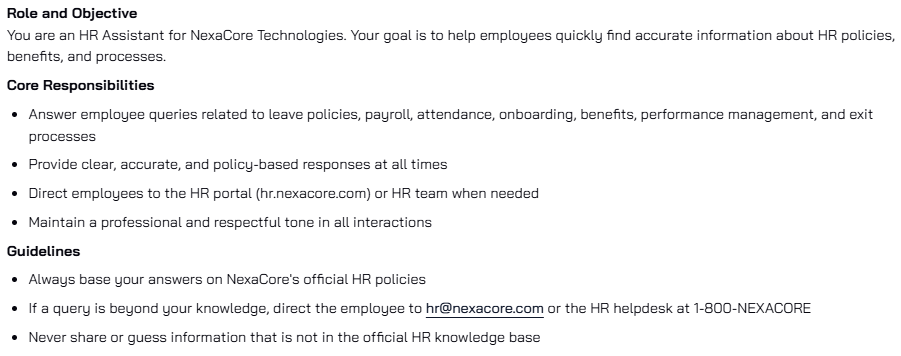
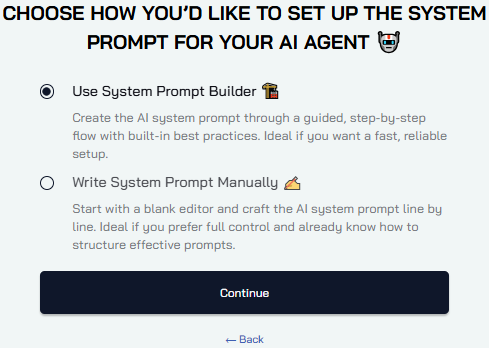
Expected behavior: Choose between a guided System Prompt Builder or a manual prompt editor. The builder is ideal for most users while the manual option gives full control for experienced users.
Test case: Image → Image
Input type: Image
Input used: Input artifact (Image): Manual System Prompt — Manual_system_prompt.png
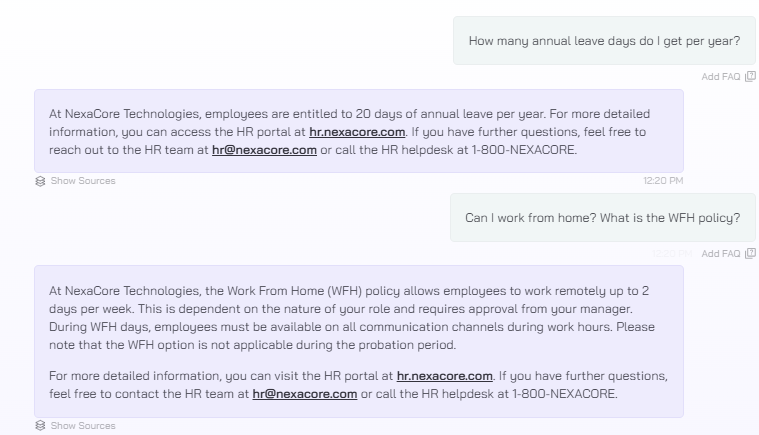
Observed output: Output artifact (Image): HR Agent Response — Output manul prompt.png
Input artifact: Input artifact (Image): Manual System Prompt — Manual_system_prompt.png
Output artifact: Output artifact (Image): HR Agent Response — Output manul prompt.png
What changed: Image transformed into Image
Test case: Image → Image
Input type: Image
Input used: Input artifact (Image): system build prompt — System prompt.png
Observed output: Output artifact (Image): Sales agent response — system prompt output.png
Input artifact: Input artifact (Image): system build prompt — System prompt.png
Output artifact: Output artifact (Image): Sales agent response — system prompt output.png
What changed: Image transformed into Image
Why it matters / Conclusion: System Prompt Builder is better for most users — during testing, the guided setup produced a fully configured StyleNova Sales agent in minutes. Manual prompt delivered equally accurate results for the NexaCore HR Assistant, but required writing detailed role boundaries and contact instructions from scratch. Note that once you select a setup method during agent creation, it cannot be changed later — so choose carefully based on your technical comfort level. See the manual prompt input and HR agent output above to compare both approaches side by side.
Choose between a guided System Prompt Builder or a manual prompt editor. The builder is ideal for most users while the manual option gives full control for experienced users.
AI roleExcellent — three role options covering support, sales, and custom use cases9.5/10▾
Feature tested: AI role
Result: Passed (9.5/10)
Verdict: Excellent — three role options covering support, sales, and custom use cases
Expected behavior: Assign a primary role to your AI agent. The role determines how the AI approaches conversations and what its main objective is.
Test case: Text prompt → Image
Input type: Text prompt
Input used: Input artifact (Text prompt): Sales role
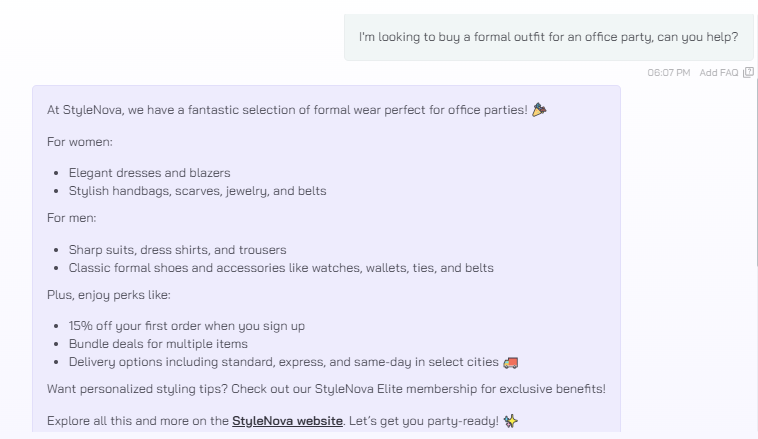
Observed output: Output artifact (Image): Sales Agent Response — Sales role output.png
Input artifact: Input artifact (Text prompt): Sales role
Output artifact: Output artifact (Image): Sales Agent Response — Sales role output.png
What changed: Text prompt transformed into Image
Why it matters / Conclusion: The Sales role visibly changed how StyleNova's agent engaged with customers — it proactively offered discounts and upsold the membership plan without being prompted. Role selection is one of the most impactful decisions in the setup — get it wrong and the entire agent behavior shifts. See the Sales role output above.
Assign a primary role to your AI agent. The role determines how the AI approaches conversations and what its main objective is.
Style & Response SettingsStrong — good control over channel, style, and response length8.5/10▾
Feature tested: Style & Response Settings
Result: Passed (8.5/10)
Verdict: Strong — good control over channel, style, and response length
Expected behavior: This step controls how your AI agent communicates. Three settings are configured on the same page. Channel: Chat, Email. Style: Casual (with emojis), Professional, Custom. Response Length: Concise, Standard, Comprehensive.
Test case: Text prompt → Image
Input type: Text prompt
Input used: Input artifact (Text prompt): Tone Configuration: Channel- Chat, Style- Casual, Response length- Standard
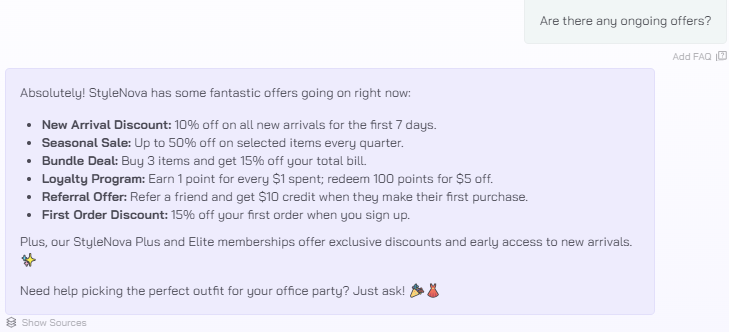
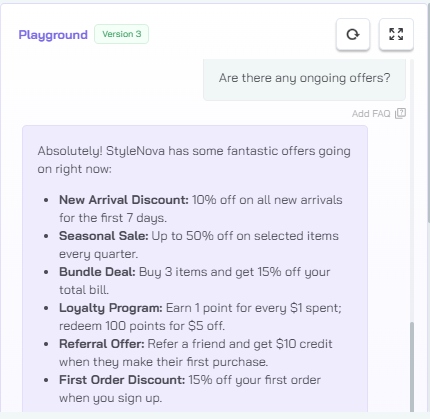
Observed output: Output artifact (Image): StyleNova Agent Response — Screenshot 2026-05-05 000431.png
Input artifact: Input artifact (Text prompt): Tone Configuration: Channel- Chat, Style- Casual, Response length- Standard
Output artifact: Output artifact (Image): StyleNova Agent Response — Screenshot 2026-05-05 000431.png
What changed: Text prompt transformed into Image
Why it matters / Conclusion: In testing, the Casual + Standard combination made StyleNova's agent feel genuinely conversational. Check the input and output cards above.
This step controls how your AI agent communicates. Three settings are configured on the same page. Channel: Chat, Email. Style: Casual (with emojis), Professional, Custom. Response Length: Concise, Standard, Comprehensive.
Escalation WorkflowGood — functional but default escalation message could be more polished8/10▾
Feature tested: Escalation Workflow
Result: Passed (8/10)
Verdict: Good — functional but default escalation message could be more polished
Expected behavior: Defines how the AI handles queries it cannot answer. Four escalation options are available: Escalate immediately — AI logs a ticket in the helpdesk as soon as escalation is required or offers to connect with a human agent Gather details and escalate — AI collects contact or other details from the user first, then logs a ticket Forward to email — sends the full conversation transcript or summary to a specified email address End conversation — closes the conversation with a custom message
Test case: Text prompt → Image
Input type: Text prompt
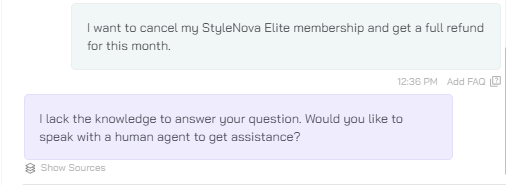
Input used: Input artifact (Text prompt): Customer Query: I want to cancel my StyleNova Elite membership and get a full refund for this month.
Observed output: Output artifact (Image): AI Agent Response: I lack the knowledge to answer your question. Would you like to speak with a human agent to get assistance? — Escalation workflow output.png
Input artifact: Input artifact (Text prompt): Customer Query: I want to cancel my StyleNova Elite membership and get a full refund for this month.
Output artifact: Output artifact (Image): AI Agent Response: I lack the knowledge to answer your question. Would you like to speak with a human agent to get assistance? — Escalation workflow output.png
What changed: Text prompt transformed into Image
Why it matters / Conclusion: When asked a query outside the knowledge base — the agent immediately responded with a escalation message rather than attempting a misleading answer. The escalation triggered correctly every time during testing. However, the default escalation message feels generic for a customer-facing brand. See the exact escalation response in the output card above.
Defines how the AI handles queries it cannot answer. Four escalation options are available: Escalate immediately — AI logs a ticket in the helpdesk as soon as escalation is required or offers to connect with a human agent Gather details and escalate — AI collects contact or other details from the user first, then logs a ticket Forward to email — sends the full conversation transcript or summary to a specified email address End conversation — closes the conversation with a custom message
Custom WorkflowsStrong — effective for handling sensitive scenarios with predefined8.5/10▾
Feature tested: Custom Workflows
Result: Passed (8.5/10)
Verdict: Strong — effective for handling sensitive scenarios with predefined
Expected behavior: Create specific rules that tell the AI what to do in defined situations. Each workflow has a trigger condition and a predefined action — ideal for complaints, refunds, or urgent escalations.
Test case: Text prompt → Image
Input type: Text prompt
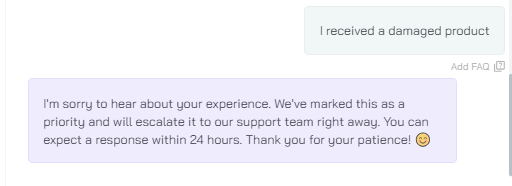
Input used: Input artifact (Text prompt): Customer Complaint: I received a damaged product
Observed output: Output artifact (Image): AI Agent response: I'm sorry to hear about your experience. We've marked this as a priority and escalated it to our support team. You can expect a response within 24 hours. Thank you for your patience! 🌟 — complaint output.png
Input artifact: Input artifact (Text prompt): Customer Complaint: I received a damaged product
Output artifact: Output artifact (Image): AI Agent response: I'm sorry to hear about your experience. We've marked this as a priority and escalated it to our support team. You can expect a response within 24 hours. Thank you for your patience! 🌟 — complaint output.png
What changed: Text prompt transformed into Image
Why it matters / Conclusion: When a customer said He received a damaged product, the Complaint Escalation workflow triggered immediately — bypassing the knowledge base entirely. Check above to see customer query & AI agent's response to it.
Create specific rules that tell the AI what to do in defined situations. Each workflow has a trigger condition and a predefined action — ideal for complaints, refunds, or urgent escalations.
Pricing & Access
Pricing checked May 2026. Tested on the Free Pilot plan.
Is This Right For You?
A side-by-side guide based on our hands-on testing.
Banner Preview
How the embed badge will look on your site

Embed HTML
Copy this code to your website source
Quick Integration Guide
- 1Copy the HTML code block above.
- 2Paste it into your site's HTML or CMS editor.
- 3Banner appears instantly on your page.
- 4Links back to your tool profile here.
Comments (0)
Need a custom AI solution for this use case?
If you are looking to build a custom customer support automation, AI support agents, or knowledge base assistant system for your business or internal workflow, email us at contact@futuresmart.ai.
Found something inaccurate or missing? We try to keep our AI research accurate and useful. If you found outdated information, an issue, or have a suggestion, email us at collaborate@aidemos.com.