.png&w=256&q=75)
Riverside Review: Auto-Captions & AI Editing Tested (2026)
Riverside Review: AI Video Captioning & Podcast Editing Tested (2026)
Our take
- You need fast, automated English-language captioning with strong visual preset options and no manual configuration
- You record podcasts or interviews and want captioning, audio cleanup, and music in one platform
- Pause removal and filler word cutting are priorities — these work well even on the free plan
- You need multilingual or translated captions — Riverside has no translation feature and this cannot be worked around
Feature scores on this page: 7.4/10 (5 scored features)
Our take
Riverside is a recording and podcast production platform with a capable AI editing layer — but it is not a multilingual captioning tool. Auto-captioning works cleanly for English-language source content, and the AI tools panel (pause removal, filler word cutting, audio cleanup) genuinely improves raw footage fast. The hard gap for this use case is simple: Riverside has no translation feature. Captions are source-language only. For creators who need multilingual output, it does not qualify — but for English-only short-form content where speed and audio quality matter, it holds up well.
In-Depth Review
Our detailed analysis of Riverside — features, performance, and real-world testing.
Feature-by-Feature Breakdown
We tested each feature individually. Click any card to see inputs, outputs, and our observations.
Video Upload Section7/10▾
Feature tested: Video Upload Section
Result: Passed (7/10)
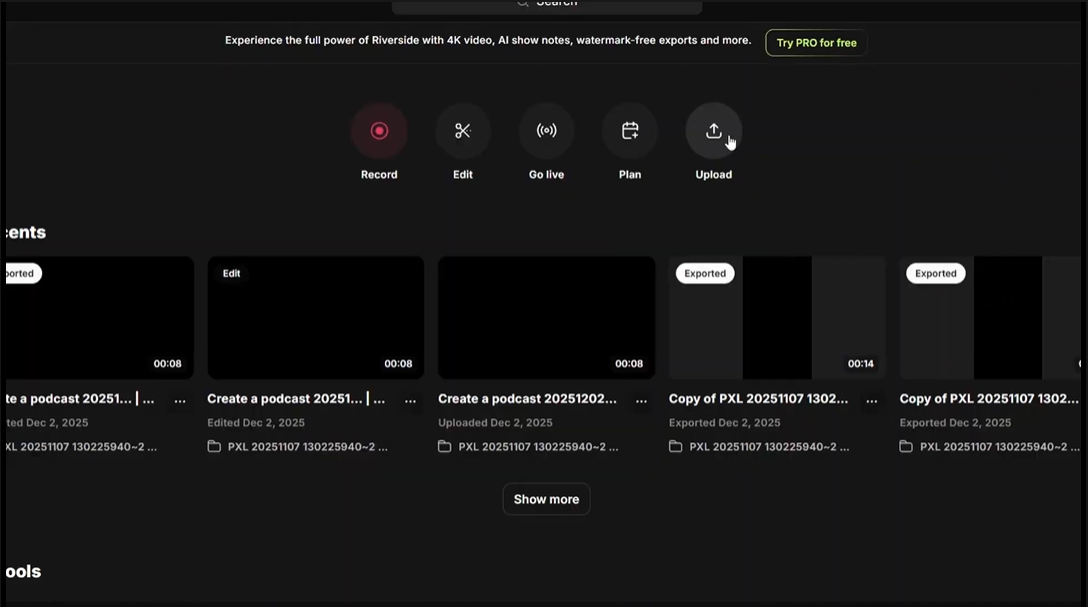
Expected behavior: Riverside accepts video uploads directly from the dashboard via the Upload button. The dashboard also shows Record, Edit, Go Live, and Plan modes — the platform is clearly built around recording first, with upload as a secondary entry point for pre-recorded footage.
Test case: Video file → Image
Input type: Video file
Input used: Input artifact (Video file): Raw .mp4 talking-head video uploaded via the Upload button on the dashboard. — Raw file of Pradip Sir-2.mp4
Observed output: Output artifact (Image): Output : — Screenshot 2026-04-15 124301.png
Input artifact: Input artifact (Video file): Raw .mp4 talking-head video uploaded via the Upload button on the dashboard. — Raw file of Pradip Sir-2.mp4
Output artifact: Output artifact (Image): Output : — Screenshot 2026-04-15 124301.png
What changed: Video file transformed into Image
Why it matters / Conclusion: Upload is frictionless. No format conversion or pre-processing needed. The dashboard is well-organised even if the recording-first layout adds some navigation overhead for upload-only users.
Riverside accepts video uploads directly from the dashboard via the Upload button. The dashboard also shows Record, Edit, Go Live, and Plan modes — the platform is clearly built around recording first, with upload as a secondary entry point for pre-recorded footage.
Auto-Captioning & Preset Styling7.5/10▾
Feature tested: Auto-Captioning & Preset Styling
Result: Passed (7.5/10)
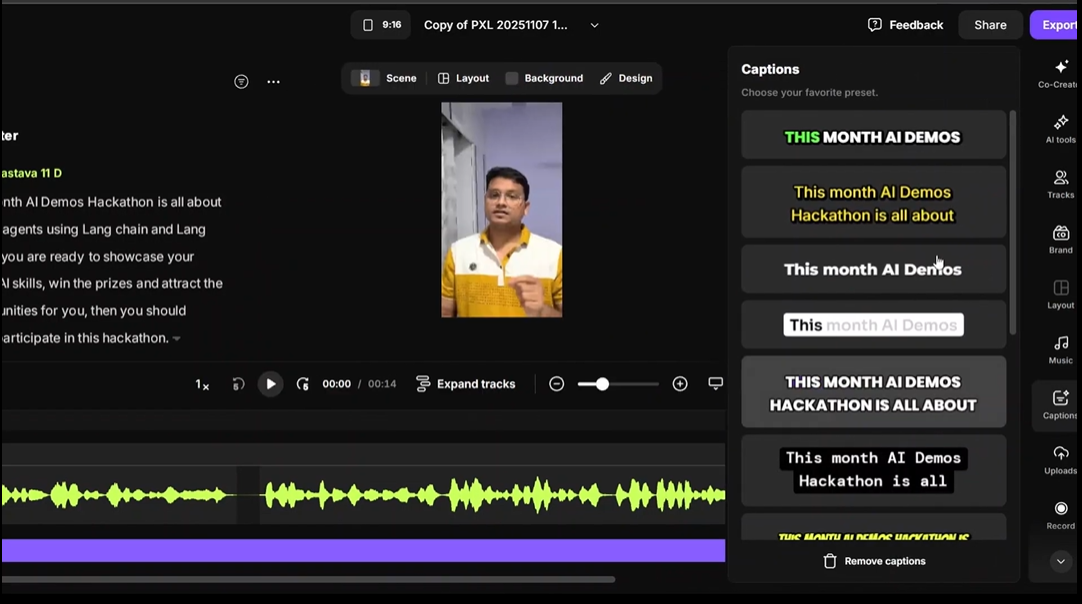
Expected behavior: The Captions panel in the editor generates captions automatically from the uploaded video and offers a scrollable set of visual presets — each showing a live preview of how captions will appear on the video canvas.
Test case: Text prompt → Image
Input type: Text prompt
Input used: Input artifact (Text prompt): Uploaded video opened in the editor. Captions panel opened from the right sidebar.
Observed output: Output artifact (Image): Output : — Screenshot 2026-04-15 124342.png
Input artifact: Input artifact (Text prompt): Uploaded video opened in the editor. Captions panel opened from the right sidebar.
Output artifact: Output artifact (Image): Output : — Screenshot 2026-04-15 124342.png
What changed: Text prompt transformed into Image
Why it matters / Conclusion: Caption presets are visually strong and apply quickly. Sync to speech is accurate. But source-language-only output means this feature partially meets the captioning use case and fully fails the multilingual requirement.
The Captions panel in the editor generates captions automatically from the uploaded video and offers a scrollable set of visual presets — each showing a live preview of how captions will appear on the video canvas.
AI Tools Panel8/10▾
Feature tested: AI Tools Panel
Result: Passed (8/10)
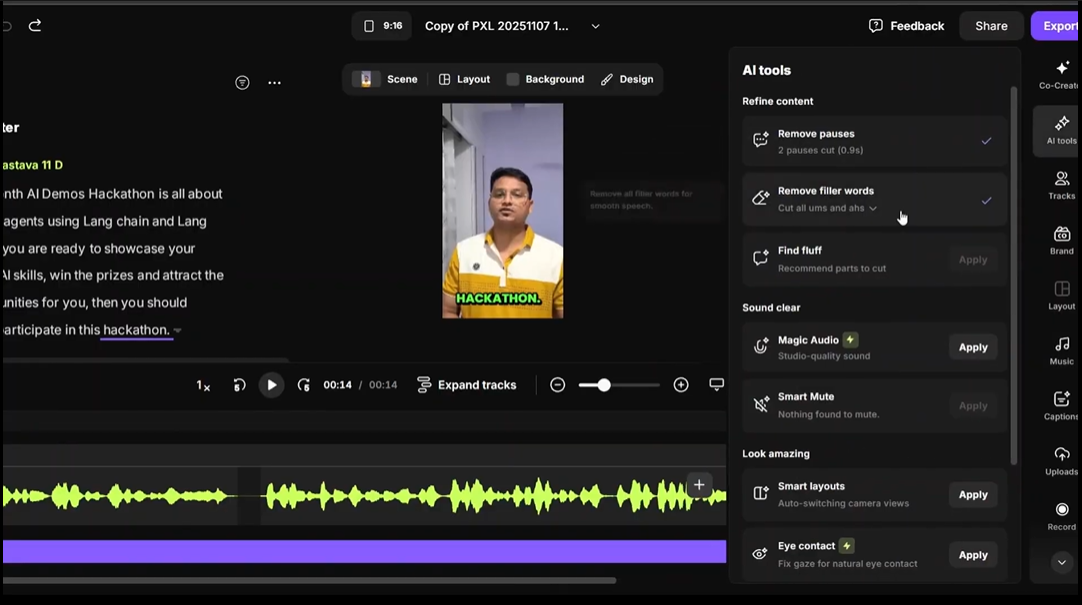
Expected behavior: The AI tools panel groups automated editing actions into three categories: Refine content (Remove pauses, Remove filler words, Find fluff), Sound clear (Magic Audio, Smart Mute), and Look amazing (Smart layouts, Eye contact fix).
Test case: Text prompt → Image
Input type: Text prompt
Input used: Input artifact (Text prompt): Uploaded video opened in editor. AI tools panel opened from the right sidebar.
Observed output: Output artifact (Image): Output : — Screenshot 2026-04-15 124439.png
Input artifact: Input artifact (Text prompt): Uploaded video opened in editor. AI tools panel opened from the right sidebar.
Output artifact: Output artifact (Image): Output : — Screenshot 2026-04-15 124439.png
What changed: Text prompt transformed into Image
Why it matters / Conclusion: Pause removal and filler word cutting are useful and functional on the free plan. The more impactful features — audio enhancement and eye contact correction — are Pro-only. For the captioning use case specifically, none of these tools address the multilingual gap.
The AI tools panel groups automated editing actions into three categories: Refine content (Remove pauses, Remove filler words, Find fluff), Sound clear (Magic Audio, Smart Mute), and Look amazing (Smart layouts, Eye contact fix).
Music Library7/10▾
Feature tested: Music Library
Result: Passed (7/10)
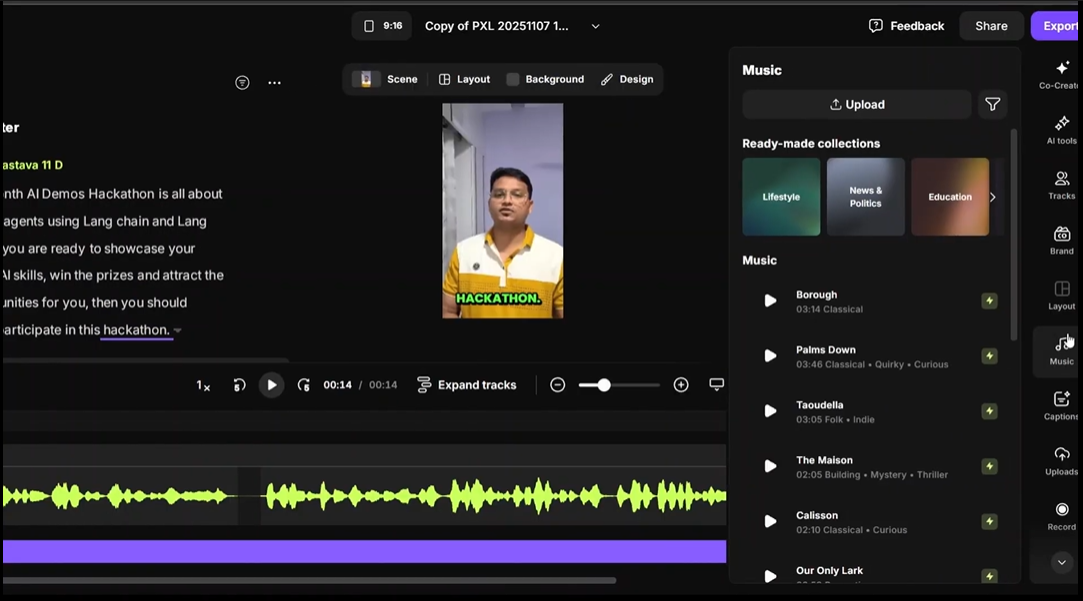
Expected behavior: Riverside includes a built-in music library with ready-made collections categorised by theme — Lifestyle, News & Politics, Education, and more — with individual tracks previewable and addable directly to the timeline.
Test case: Text prompt → Image
Input type: Text prompt
Input used: Input artifact (Text prompt): Music panel opened from the right sidebar during editing.
Observed output: Output artifact (Image): Output : — Screenshot 2026-04-15 131425.png
Input artifact: Input artifact (Text prompt): Music panel opened from the right sidebar during editing.
Output artifact: Output artifact (Image): Output : — Screenshot 2026-04-15 131425.png
What changed: Text prompt transformed into Image
Why it matters / Conclusion: Useful for creators who want background audio without leaving the platform. Not relevant to the captioning use case, but adds legitimate production value to the broader editing workflow.
Riverside includes a built-in music library with ready-made collections categorised by theme — Lifestyle, News & Politics, Education, and more — with individual tracks previewable and addable directly to the timeline.
Export7.5/10▾
Feature tested: Export
Result: Passed (7.5/10)
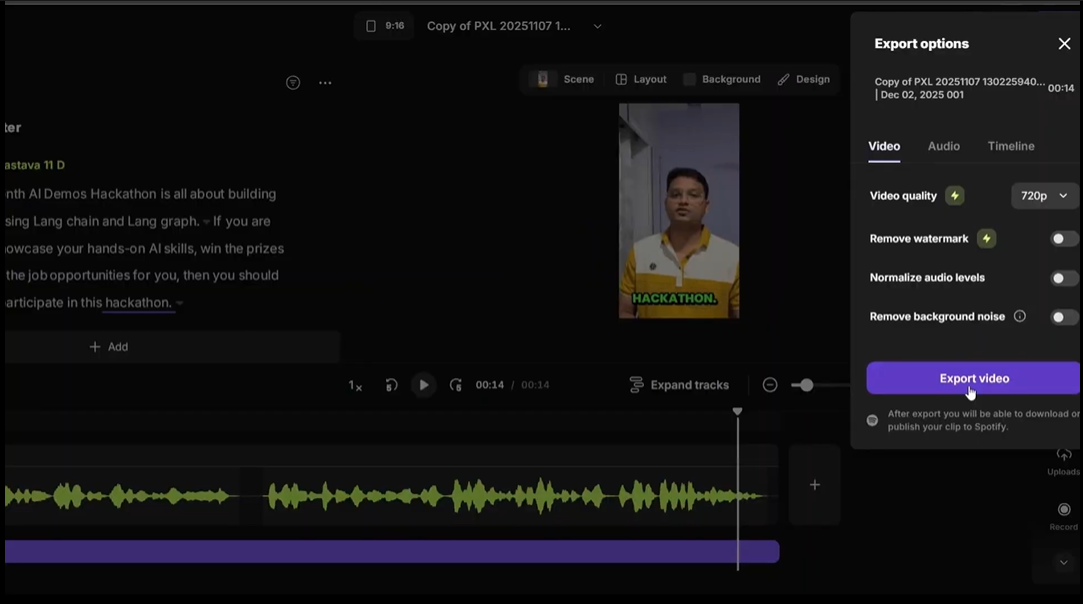
Expected behavior: Export options include video quality selection, watermark removal toggle, audio normalization, and background noise removal. After export, the video can be downloaded or published directly to Spotify.
Test case: Text prompt → Image
Input type: Text prompt
Input used: Input artifact (Text prompt): Edited video with captions applied, ready for export via the Export button.
Observed output: Output artifact (Image): Output : — Screenshot 2026-04-15 131513.png
Input artifact: Input artifact (Text prompt): Edited video with captions applied, ready for export via the Export button.
Output artifact: Output artifact (Image): Output : — Screenshot 2026-04-15 131513.png
What changed: Text prompt transformed into Image
Why it matters / Conclusion: Export works on the free plan at 720p with watermark. Clean, no additional steps required. The quality and watermark gates are standard free-plan limitations consistent with what we saw across other tools.
Export options include video quality selection, watermark removal toggle, audio normalization, and background noise removal. After export, the video can be downloaded or published directly to Spotify.
Pricing & Access
Plans as of April 2026. Tested on the free tier.
* Pricing as of April 2026. Billed annually.
Is This Right For You?
A side-by-side guide based on our hands-on testing.
Banner Preview
How the embed badge will look on your site
Embed HTML
Copy this code to your website source
Quick Integration Guide
- 1Copy the HTML code block above.
- 2Paste it into your site's HTML or CMS editor.
- 3Banner appears instantly on your page.
- 4Links back to your tool profile here.